UI/UX Design
Staff Alarm System.
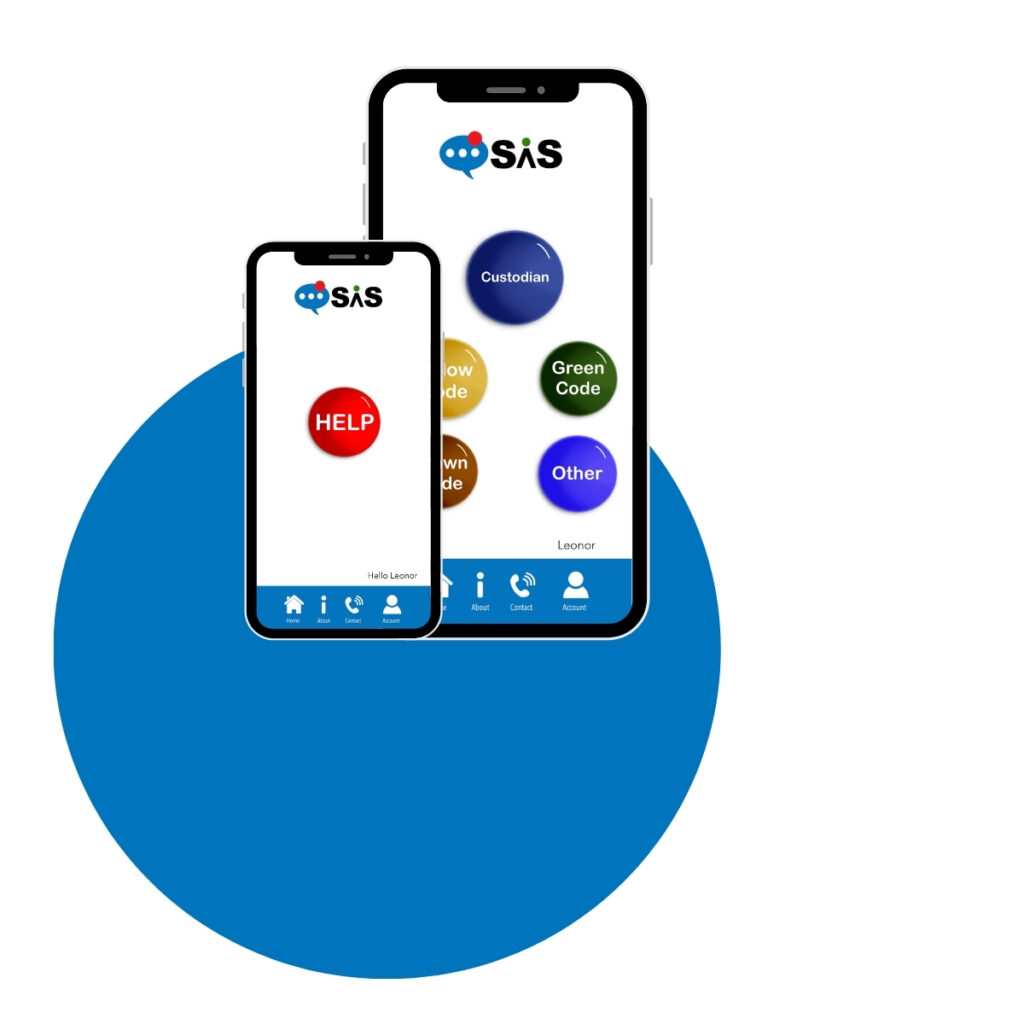
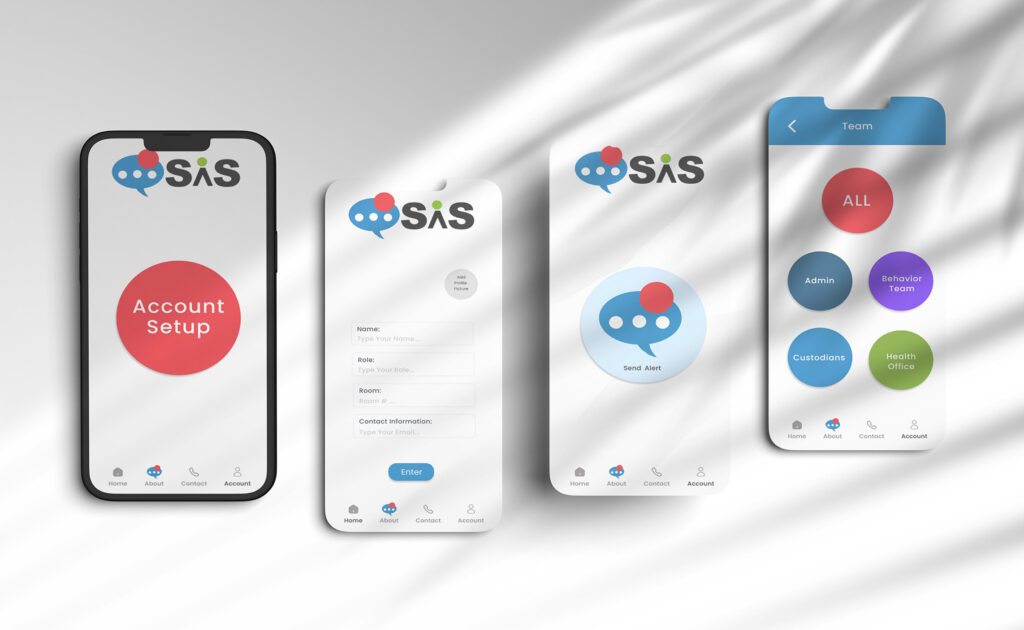
A color-coded mobile alert system designed to help school staff communicate faster and more safely in urgent situations — built as a full UI/UX prototype from concept through interactive Figma flow.
Staff Alarm System (SAS) is a mobile app prototype I designed to improve internal communication among school staff.
As a teacher, I experienced firsthand how difficult it was to reach the office quickly during urgent situations — phones were busy, walkie-talkies were disruptive, and privacy was a concern.
I designed SAS to solve this with a simple, color-coded alert system that works across phones, tablets, and computers. I also created the SAS logo from scratch.
Skills: UI Design, UX Thinking, App Design, Prototyping
Tools/Software: Figma, Illustrator, Photoshop
Welcome To Our Application
The Staff Alarm System is a color-coded communication tool that lets staff send and receive alerts across phones, tablets, and computers — replacing unreliable, disruptive methods like walkie-talkies and busy phone lines with something fast, discreet, and accessible to everyone.
About Our Application
Designed by an educator, for educators. As a teacher, I experienced firsthand how hard it was to reach the office quickly in urgent situations. The Staff Alarm System was built to solve that — giving school staff a simple way to signal exactly what’s needed, right when it matters.
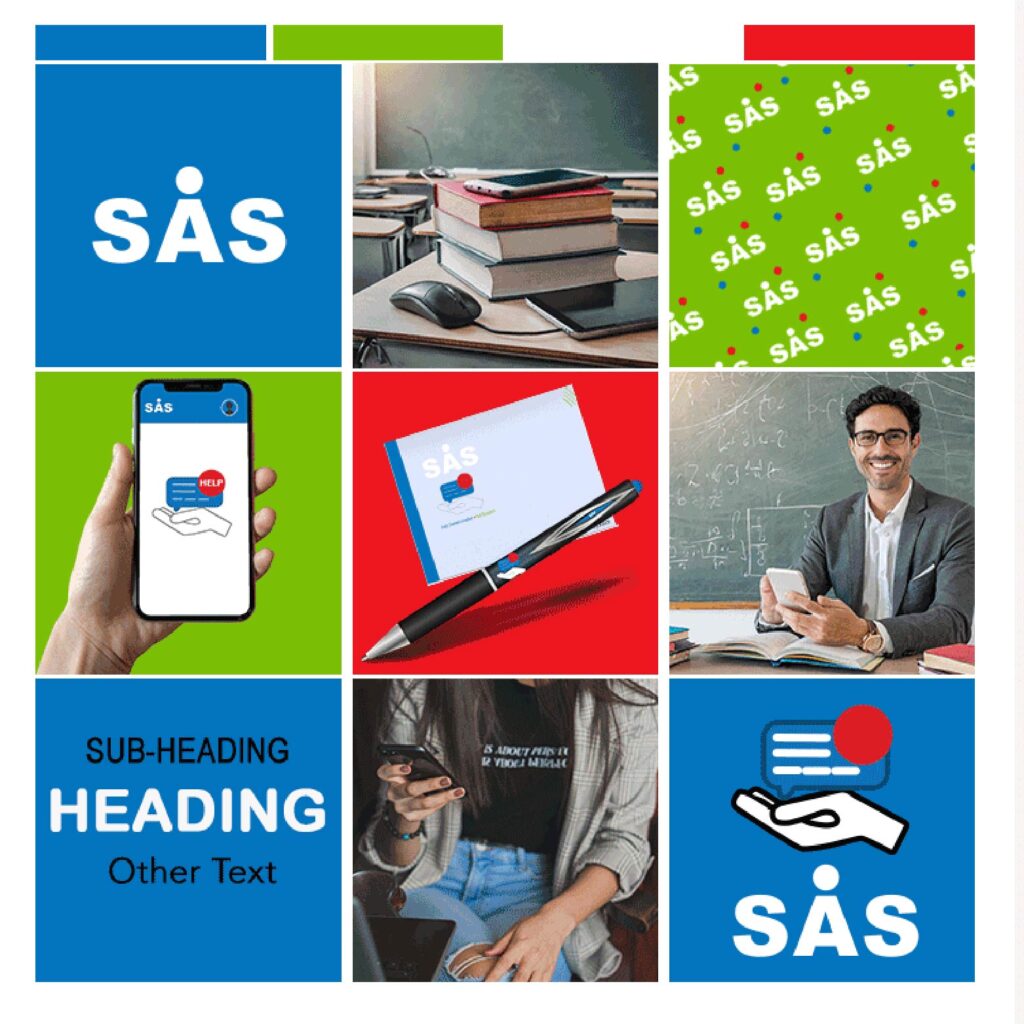
Why This Colors? The palette was chosen with intention: blue for calm and confidence, green for safety and approachability, red reserved for urgency, and white for clarity and breathing room.
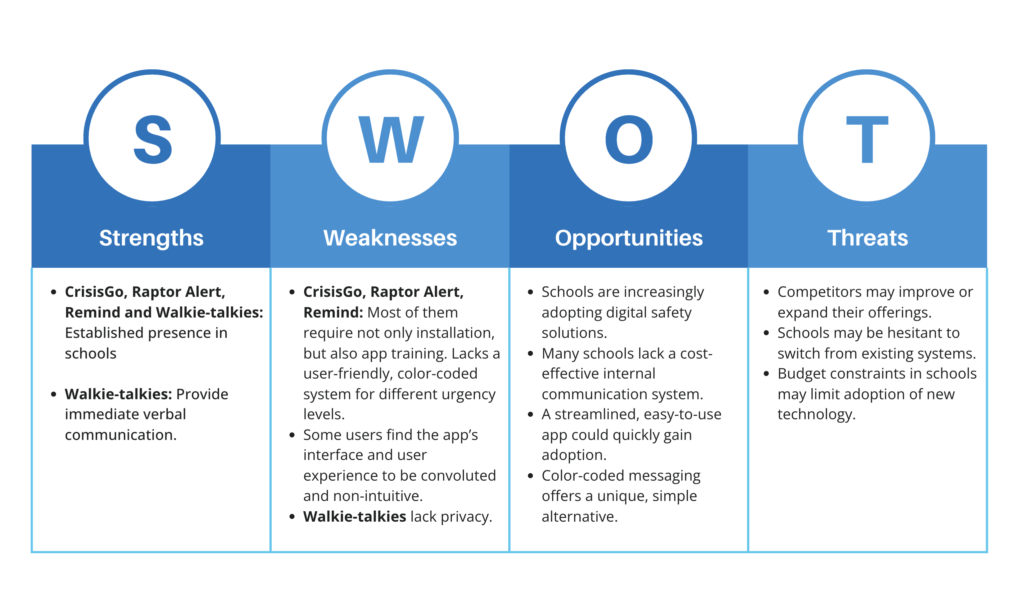
1. CrisisGo: This is a safety communication platform for schools, allowing real-time messaging and emergency response coordination. 2. Raptor Alert: A mobile panic alert system for schools, designed for emergency situations. 3. Remind: A communication app used in schools, but mainly for teacher-parent communication. 4. Standard Walkie-Talkies: Widely used in schools for communication in different areas of the building.
The design process continue with identifying the problem and researching existing solutions. The app was built around four key considerations: a user-friendly interface, color-coded messaging, multi-device accessibility, and building layout integration for location-based alerts.
Our Users
The primary users of the Staff Alarm System include:
- Teachers: Need a quick way to report behavior issues, safety concerns, or emergencies without disrupting class.
- Administrators: Require a central communication hub to monitor school safety and respond promptly.
- Support Staff (Security, Counselors, Nurses, Custodians, etc.): Need to be aware of emergencies and know where to respond immediately.
- Daycare Providers: Require a secure method to call for assistance without alarming children or parents.
- University Faculty & Staff: Need a discreet way to address emergencies on campus.
Problem 1
Currently, communication among school staff is inefficient. Walkie-talkies are expensive, noisy, and not accessible to all staff.
Problem 2 Teachers struggle to reach the front office due to busy phone lines.
Ideation
The Design Process:
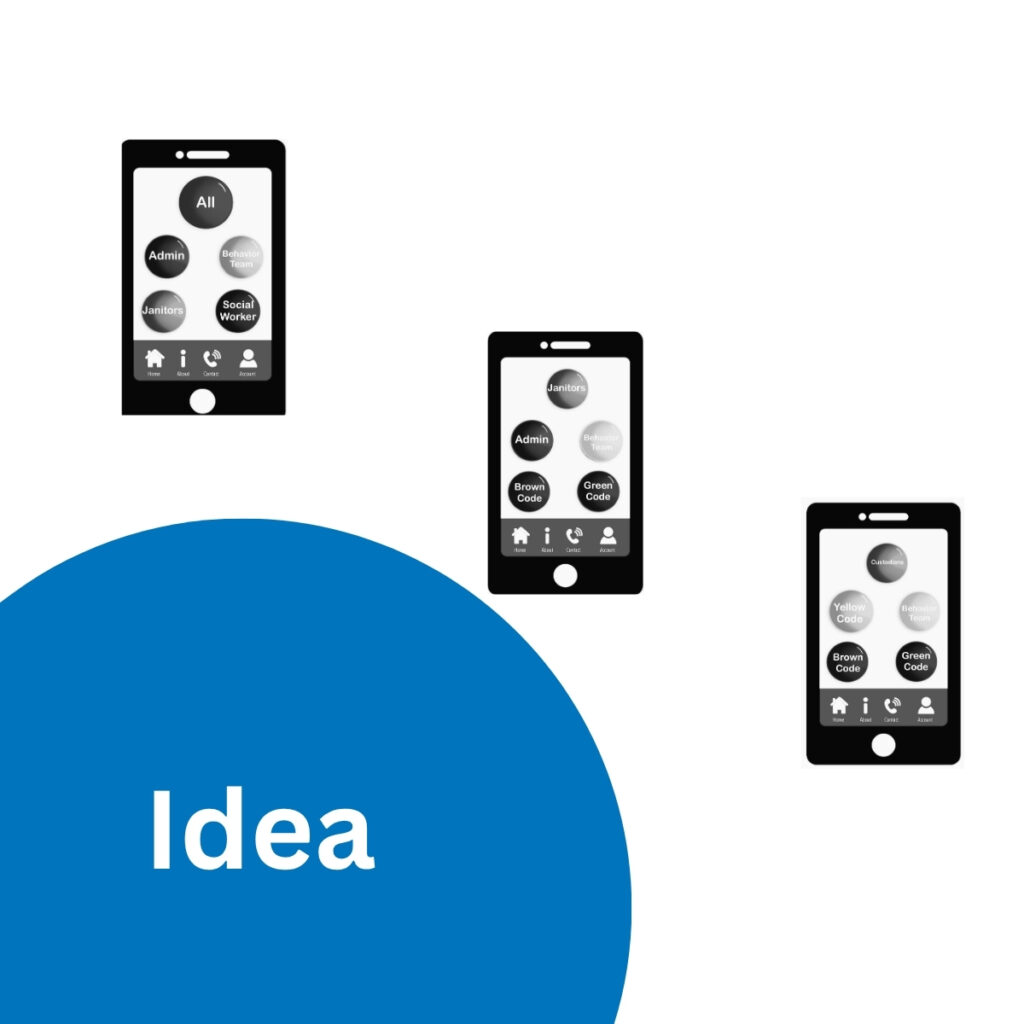
As a teacher, I often found it difficult to contact the office in urgent situations. Phones were often busy, and walkie-talkies were disruptive. Plus, not every staff member had one, and messages could be overheard, creating privacy concerns.
This app was designed with the following considerations:
1. User-Friendly Interface:
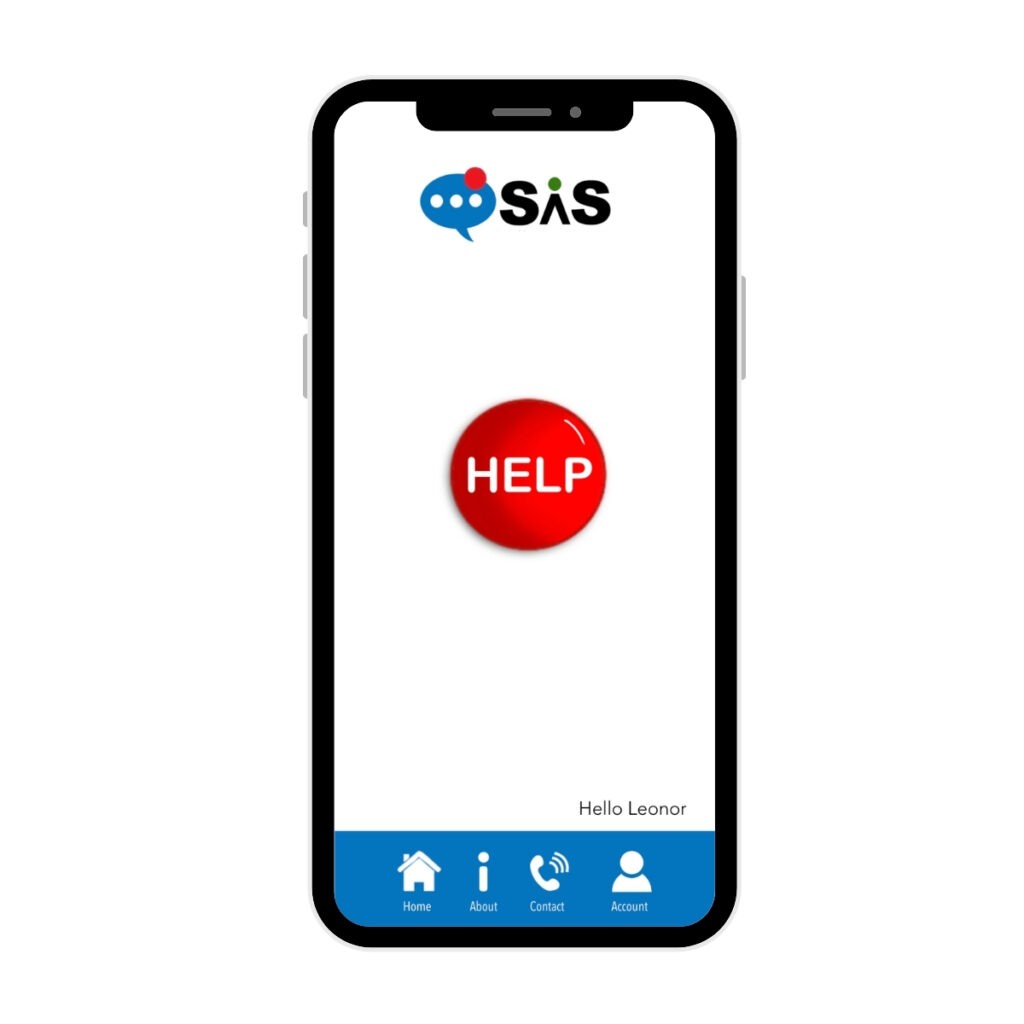
Simple dashboard for sending and receiving alerts.
2. Color-Coded Messaging:
The color-coding doubles as a shared vocabulary — a color can be announced over the PA system or displayed on screen, giving staff a fast, low-bandwidth way to signal urgency.
3. Multi-Device Accessibility:
Works on phones, tablets, and computers.
4. Building Layout Integration:
Administrators can input floors and classrooms for location-based alerts.
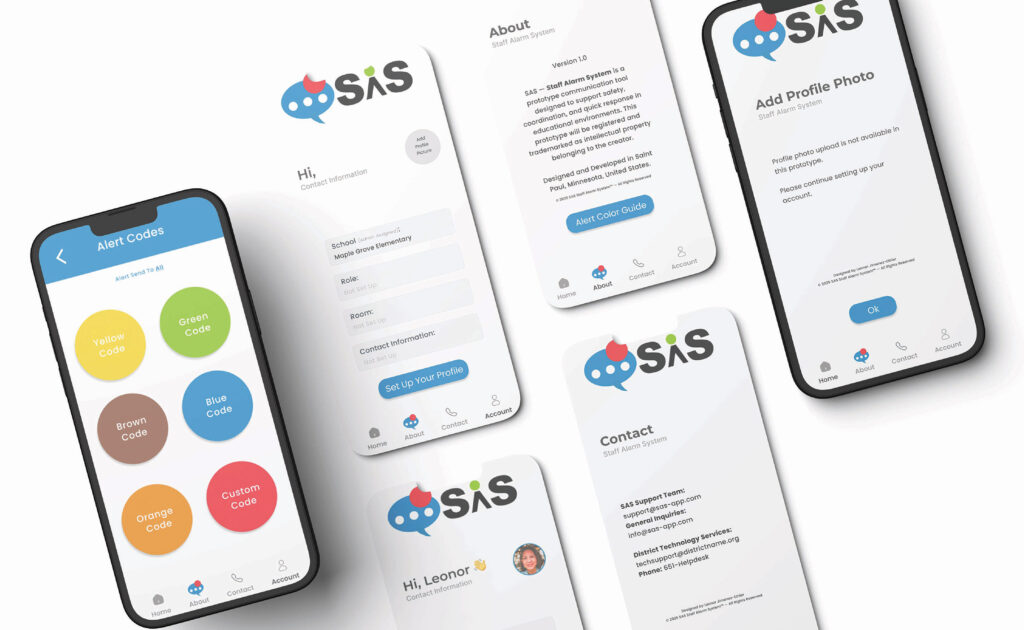
- Discreet Communication: Unlike walkie-talkies, alerts remain private.
- Instant Notifications: Ensures the right staff members receive messages immediately.
- Multi-Device Syncing: Allows all staff to stay informed, even if away from their desks.
Next step: structured usability testing with school staff to validate the flow and surface friction points before development.
To complete the app, the following steps must be taken:
- Seek District Approval: Since this app would be staff-facing and touch data privacy, the next step is getting approval from the school district’s technology department before any real-world testing.
- Start as a Web App: Build the MVP as a responsive website-app first — faster to develop, no app store approval needed, and works across phones, tablets, and computers.
- User Testing: Once approved, conduct usability testing with school staff to validate the flow and refine features.
- Enhance Features: Based on feedback, consider adding sound alerts and other improvements.
- Evolve to Native App: Once validated, consider a native app for stronger push notifications and offline reliability.
Early feedback from coworkers suggests the core concept has promise. My goal is to move it through the proper approval process, starting with a lightweight web-app MVP, and validate it with real users.
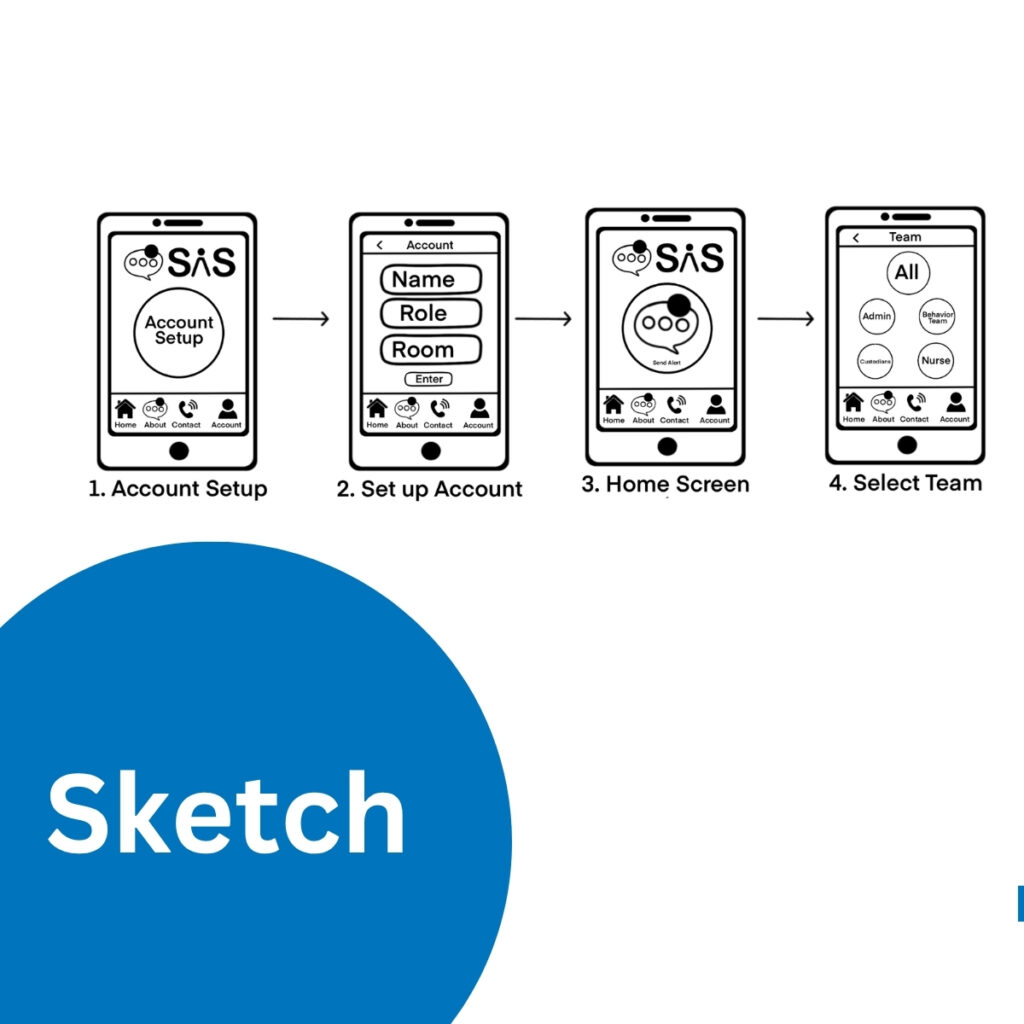
Initial sketches explored the core structure of the SAS app and clarified how users would move from account setup to sending an alert. These early drawings formed the foundation for the wireframes and final interactive prototype.
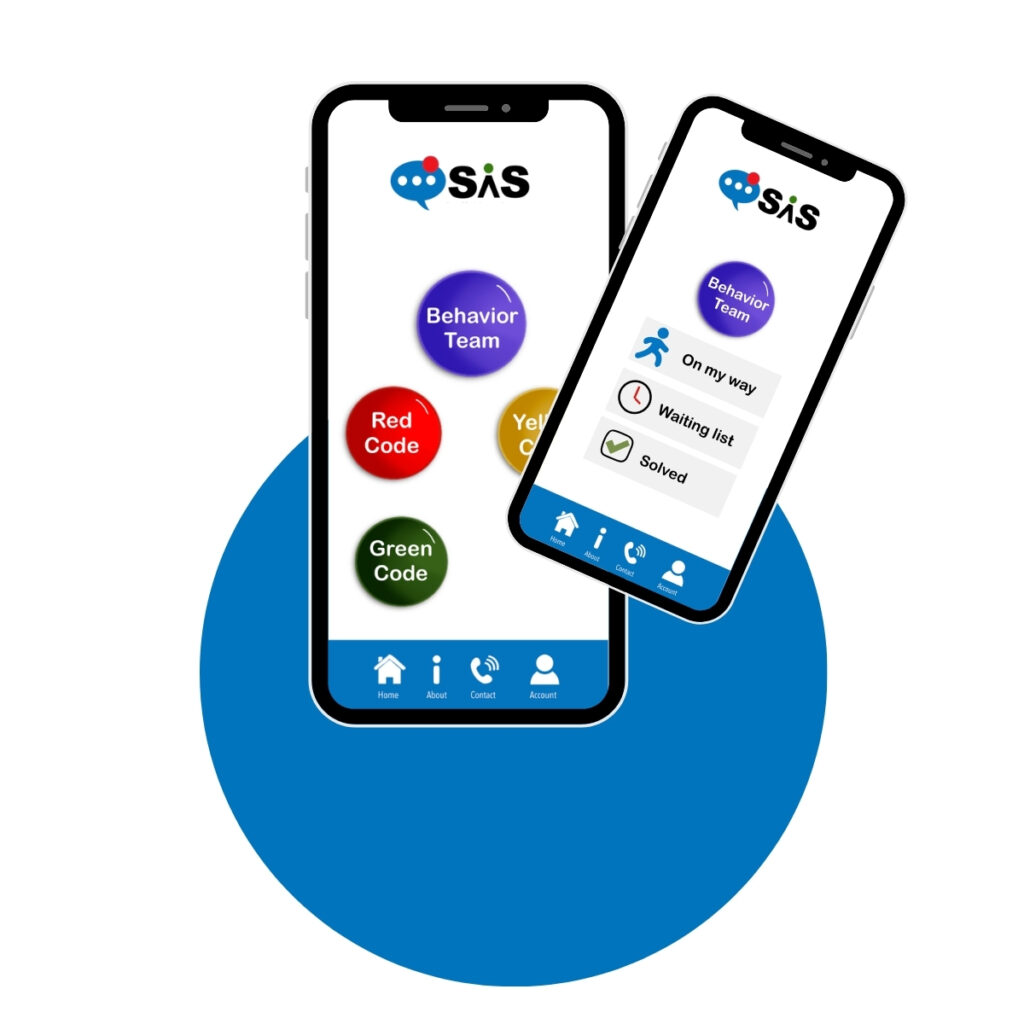
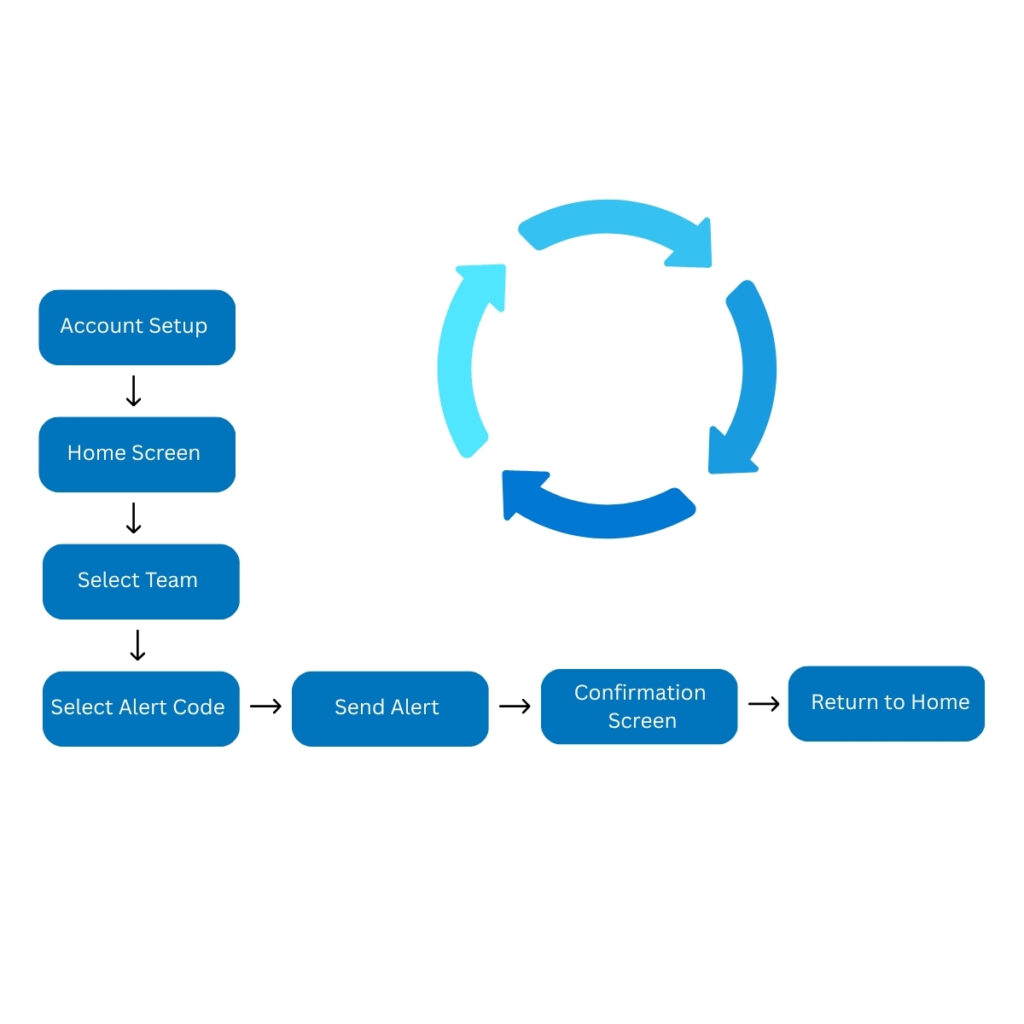
This simplified flow outlines the core interactions of the SAS Staff Alarm System. The design focuses on helping school staff quickly send alerts, choose the appropriate code, and receive confirmation. This diagram represents the conceptual structure without exposing detailed UI screens.
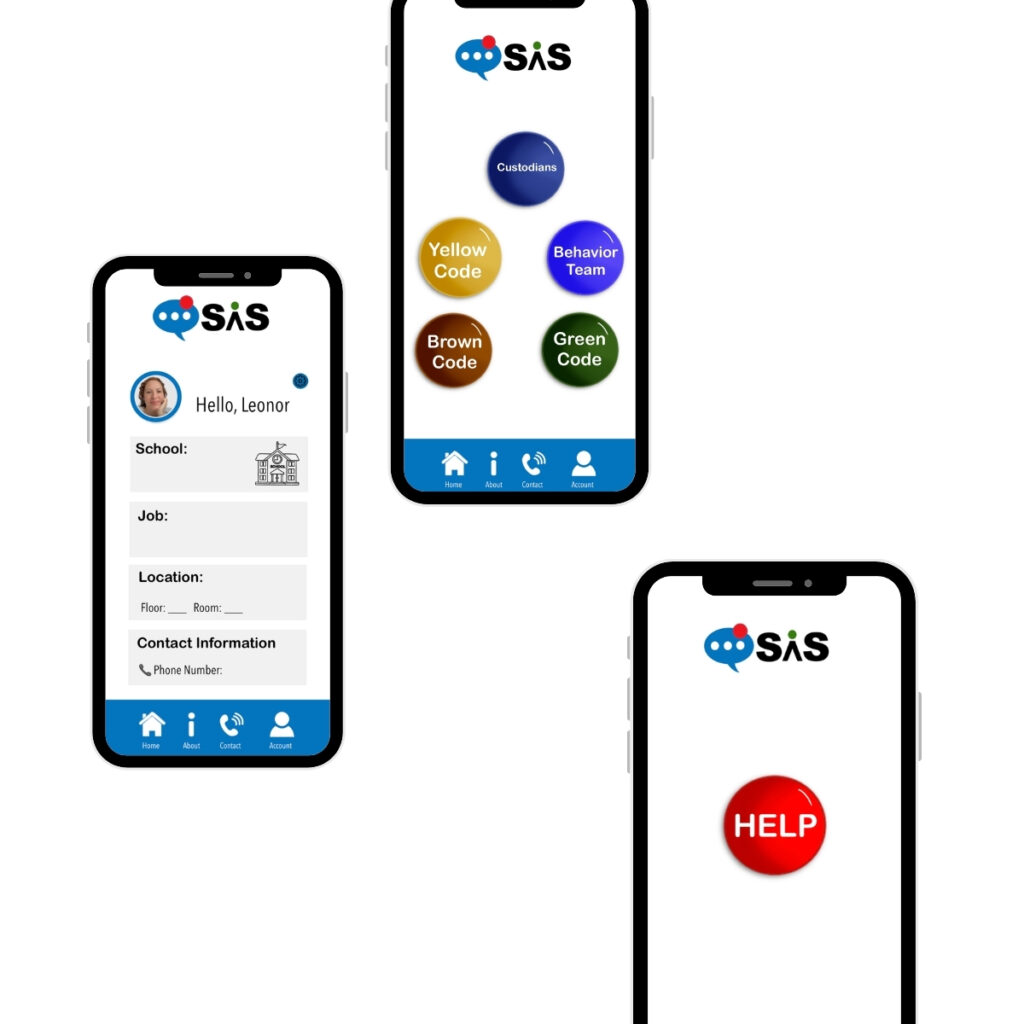
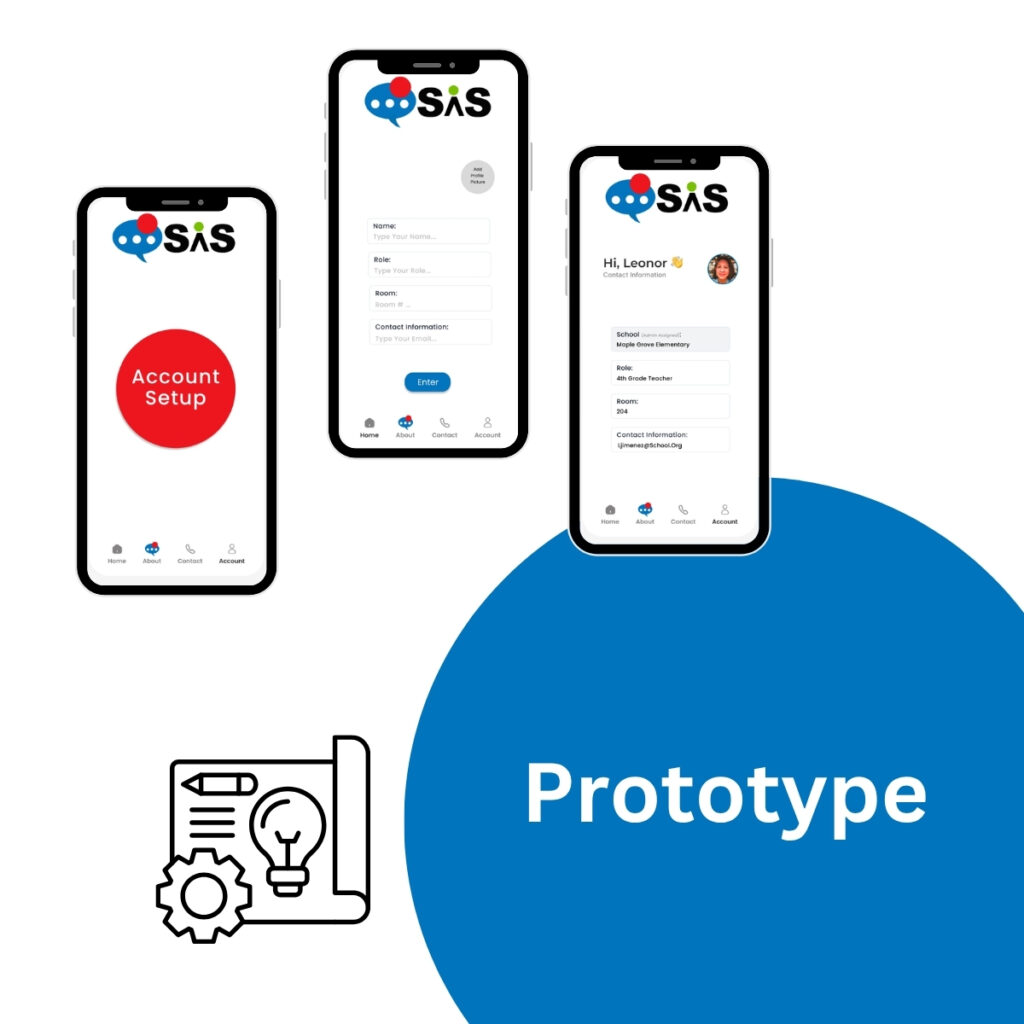
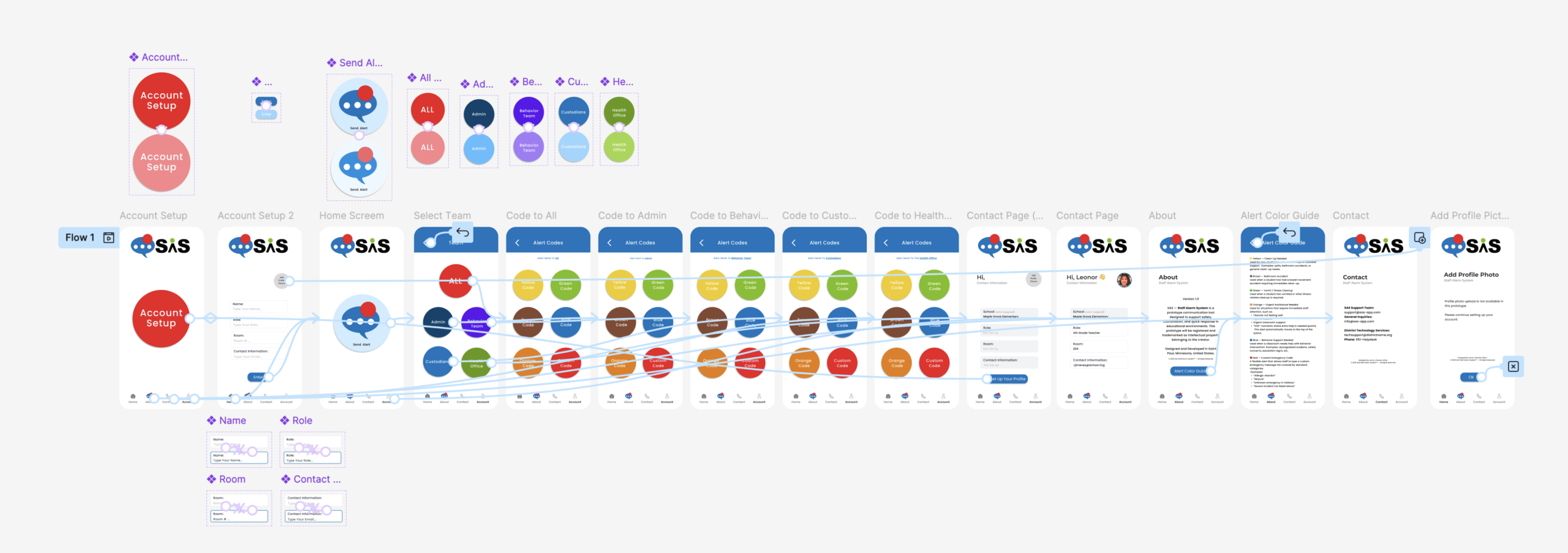
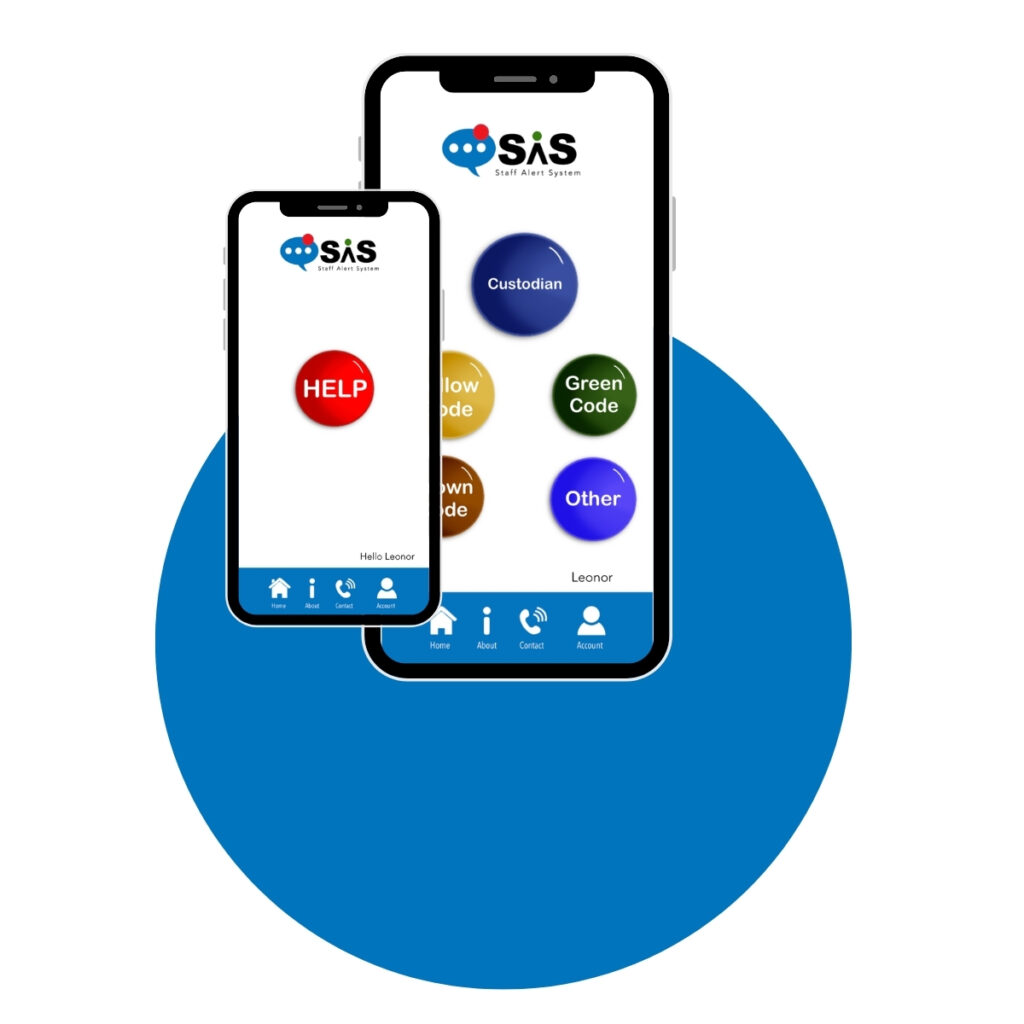
A clickable prototype was created in Figma to demonstrate navigation, alert selection, and the core communication flow. This prototype is an early-stage representation of the concept.
Figma Prototype
This project represents the full design foundation of the SAS Staff Alarm System — from identifying the problem as a teacher, through research, sketching, wireframing, and a clickable Figma prototype. The process shaped my thinking on usability, user needs, and system flow, and gave me a working prototype to build toward real-world testing.
Future iterations would focus on refining the UI, expanding alert options, and navigating the district approval process needed for real-world implementation.
© 2026 Leonor Jimenez. All rights reserved. The Staff Alarm System (SAS), including its concept, design, user interface, logo, and branding, is an original work created by Leonor Jimenez. Unauthorized use, reproduction, or distribution of any part of this project is strictly prohibited.